
 Pasteup
Readable screenshot names
Generic clipboard screenshots get the date and time instead of image.png. Hit Undo if you attach the wrong one.
Copy a screenshot, a file, or spreadsheet rows. Press on a form to attach them. If the field requires a PDF, Pasteup converts your image or CSV right in Chrome.
Drop a screenshot here or
or press Ctrl V anywhere on this pageTry a sample or paste your own file. Files stay in this tab.
Attaching a screenshot, pasting several files at once, and picking a field on a job application.
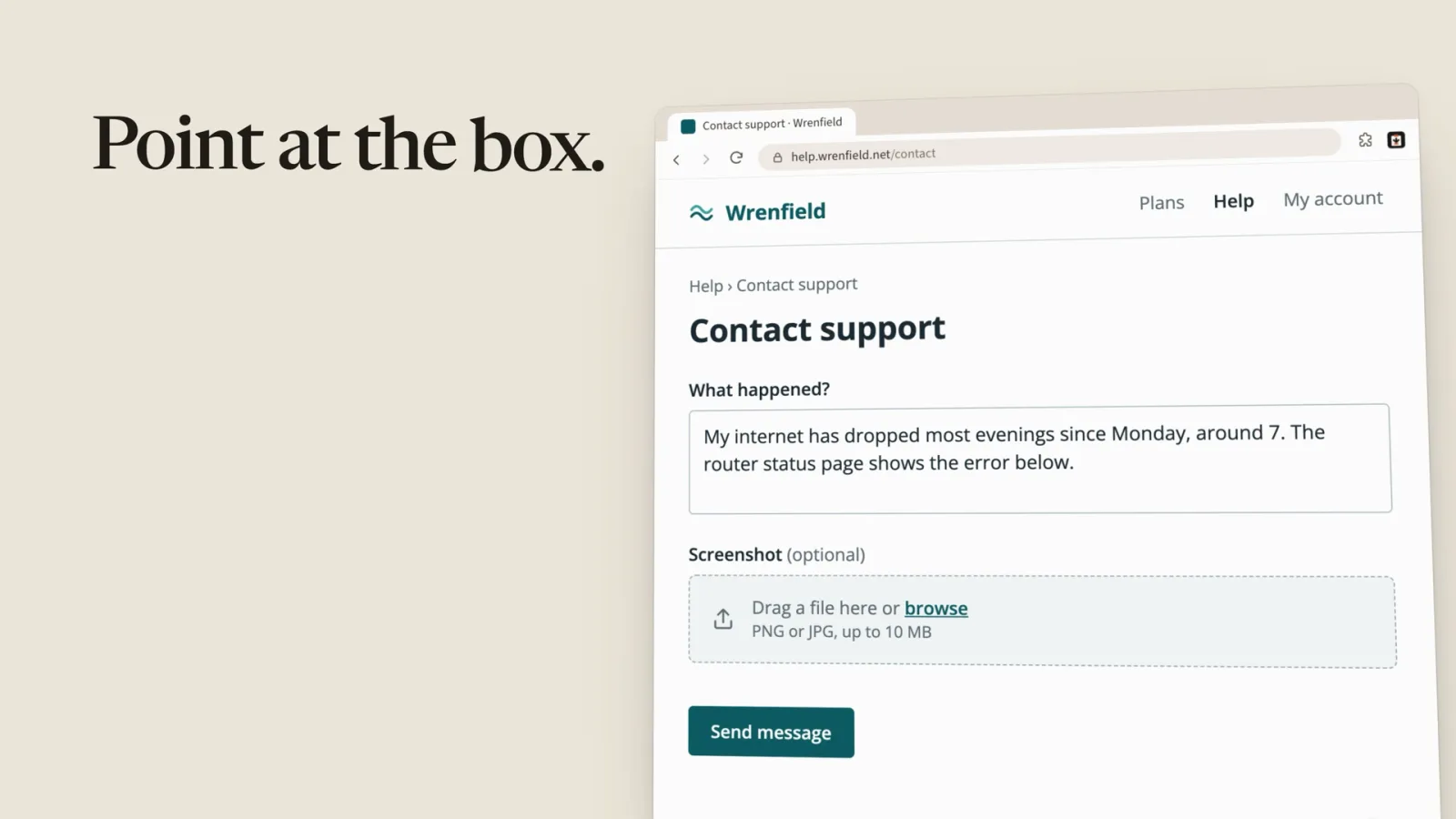
Generic clipboard screenshots get the date and time instead of image.png. Hit Undo if you attach the wrong one.
Select and copy files in File Explorer, then press to attach the whole selection.
When a page has several upload boxes, press the number beside the one you want. Press to rename the file first.
Pasteup matches the format the field asks for automatically, or you can pick one yourself from the Paste menu.
Pick what’s on your clipboard to see which file types Pasteup can attach.
Paste a screenshot as an image or convert it to a single-page PDF.
Clipboard image (image.png · 1.8 MB)
screenshot-20261123-094218.pdf
Change either extension shortcut at chrome://extensions/shortcuts.
Point at an upload field and paste. If you get a format warning, paste once more to attach the original file anyway.
Press a number from 1 to 9, or use the arrow keys and Enter. Press R to rename the file before attaching.
Attach a file from your clipboard without leaving a focused text box.
Reveal every upload target on the page and press its number to attach there.
Pasteup converts files inside Chrome. Only the website where you attach a file receives it.
Read the privacy policy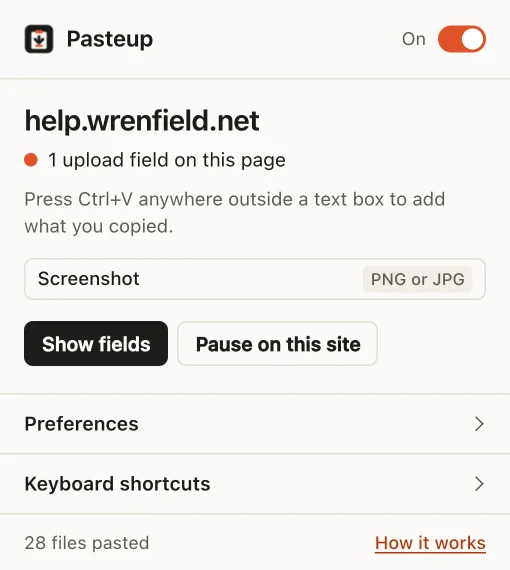
Open Pasteup from Chrome’s toolbar to highlight upload fields on the page, pause Pasteup on that domain, or adjust conversion preferences.
Why does Chrome ask for “all websites” permission?
Upload fields appear on all kinds of sites (job boards, expense tools, support desks), so Chrome shows its standard “read and change data on all websites” prompt for an extension that listens for Ctrl V across tabs. Pasteup looks only at file inputs, reads your clipboard only when you paste, and makes no network requests.
Paste works normally whenever your cursor is in a text box, email composer, or chat app. Sites that already handle pasted files on their own get the first chance to attach them.
Yes. Copy the files, switch to Chrome, and press Ctrl V. Upload fields that accept multiple files receive the whole selection.
Pasteup checks which formats the field accepts and converts locally when needed: turning a CSV into a formatted PDF table, an PNG into a PDF, or an SVG into a PNG. You can also pick a format manually from the Paste menu.
Hover over a field and press Ctrl V to target it directly. If you paste elsewhere on the page, a numbered list lets you choose which field receives the file.
No. Pasteup reads the clipboard only when you trigger a paste command, and keeps no clipboard history.
Yes. It is free and works without an account.
Free for macOS, Windows, Linux, and ChromeOS